Wednesday, 16 September 2015

how to  make an item look  more  filled out


find the  item you wish to select 
then open in psp
once you have your  item /element   follow the  instructions below


go to selections and follow as  picture below  with the numbered steps


next you will choose modify  and again choose  contract 


when the box opens  make the  modify to the number you want


next click on  invert 


and then go back to modify and  choose feather  make the feather much larger in number than  contract


now go to adjust
hue/saturation/lightness and bring down the right  arrow to make the outer  darker


now go back and again choose selections/select all /float/defloat


this time  go to modify/contact same number already in the box
click it then  choose feather again just click and then  go to hue/saturation/lightness and make the  image lighter 
if you are happy 
then you have completed  your item

dont forget there is always the back button  so dont be afraid to experiment


and there you are     done :)


Friday, 26 April 2013

Tutorial 3 piece Forum set Dark Somnia

Dark somnia forum set 


any similarity
to another tutorial is strictly coincidental
please do not copy  my  work or claim as your own 


supplies needed
paint shop pro i used psp9 but any will do
A mask
a font 
a cluster frame 
a scrap kit 
i used the beautiful PTU kit 
from Digi Mania 
called Dark somnia
you can purchase  HERE
if you purchase this  kit you will recieve the cluster frame shown on the tag free
i used the Awesome art work of  © Misticheskaya
this is a PTU tube  psd
you can purchase the tube  HERE

lets get started :o)

open a new raster layer 1000x1000
we will resize later 

open your cluster frame  
choose a paper  from the kit
and copy/paste as new layer 
erase any of the paper showing  around the outside of the frame 
using  elements of your choice 
place around the frame     
(see mine for details )
add your tube  
and duplicate 

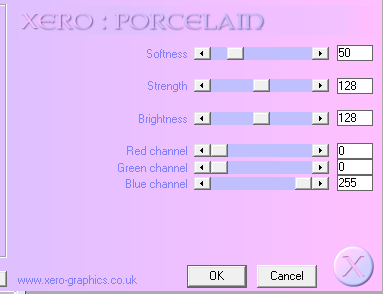
on your original tube layer  effects/plug in /xero /porcelain
with settings below

on your copy layer 
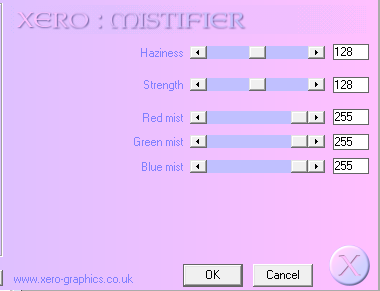
effects/xero/mistifier
with settings below

again on copy layer 
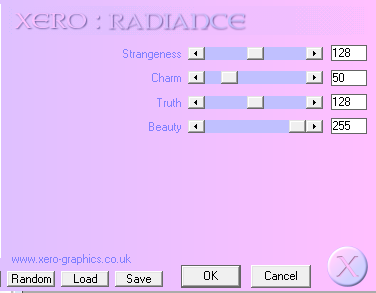
effects/xero/radience

with settings below

i added a few elements from the kit behind the tube
you can also do this 
once you have 
placed all your elements where you want them 
layer/merge/merge /visible

find another different  paper and /copy/paste as new layer 
go to layers /load save mask 
find your mask and load it making sure the  fit mask to  layer is  highlighted /clicked 

once you have  loaded your mask  on your layer palette  right click mask layer and  merge/merge group
duplicate this layer and  image/flip/mirror 
now move your mask so they can be seen just behind your  tag 
adjust/noise/ 100%
repeat this on the other mask layer 
x out in layer palette  both mask layers 
and duplicate your tag layer 
on your original tag layer 
 go to adjust / blur  /Gaussian blur  20
merge /merge visible
add your name  and  copyright info for artist
if you are using a  ptu tube and have a licence number dont for get to  add that also
un x your mask layers
merge merge visible

taking a colour from your  tube 
make a rectangle to use as a frame for your  banner 
repeat as above omitting the  mask layers 
 only you must always add your artists  copyright information
 again add your name and  merge /merge visible

repeat this with a close up iof your tube 
and making a new frame  repeat with your avatar  
you will find you wont be able to  place any  elements 
as there wont be room 
( see mine for  help )

once you have completed you can now resize 
for the tag i recommend 600x600

for the banner 600 width 

for the avatar  200 height 

thats it your done you now have a forum set for you to use and show off to your friends 

hope you enjoyed this tutorial :o)


Saturday, 20 April 2013

passionate kiss - Man Eater

Passionate Kiss - Man Eater


any similarity
to another tutorial is strictly coincidental
please do not copy  my  work or claim as your own 


supplies needed
paint shop pro i used psp9 but any will do
two masks
a font 
a template 
by Sue 
from creative misfits 
you can find the template HERE
a scrap kit 
i used the beautiful PTU kit 
from Digi Mania 
you can purchase  HERE
i used the Awesome art work of  © Keith Garvey
you can purchase the tube  HERE

lets get started :o)


Find your template and open in psp
image/ canvas size  enlarge  to 1000x1000
on each of your template layers in turn  /image / enlarge by 120 %
once you have enlarged your template 
open your scrap kit and  choose a paper 
on your  rectangle layers  on template  go to selections/select all/selections/float/selections defloat
copy your paper 
on your template  right click choose  paste into selection 
repeat this  until you have  filled each of your  boxes 

open your tube of choice and  copy / paste as new layer  drag your layer  above the square  layer on your template 

once you have  positioned your tube  
go to layer pallette and  duplicate  tube layer 
on original tube layer 
effects/plug ins/ xero/ porcelain 
as shown below

now on your  copy tube layer  again effects/plug ins/xero/mistifier
as below


again on your  copy tube layer 
effects/plug ins /xero /radience


right click on your copy tube layer and  merge/merge down
add a drop shadow of choice

now add your elements of choice 
place them where you  like them  and resize if needed 
add a drop shadow to your elements 
add your  name and  tube information and copyright
layers/merge/merge visible
duplicate your  merged layer and on your original merged layer 
adjust/blur/Gaussian blur at 20%
i used a  diamond from the kit  and then  used 
mura miester /copies /tiling 
if you  have something similar you could use the same 
find a nice  paper from your kit and  copy / paste as new layer then drag to bottom 
layers/load/save mask 
find your first mask and  load it 
on layer pallette  merge/merge group  
move your  mask layer to the left 
now duplicate mask layer 
image  flip/image mirror

again another paper and repeat using a different mask 
 again merge /merge visible

and thats it your done 
hope you enjoyed this tutorial :o)

thank you for  looking